Using the Camera Node
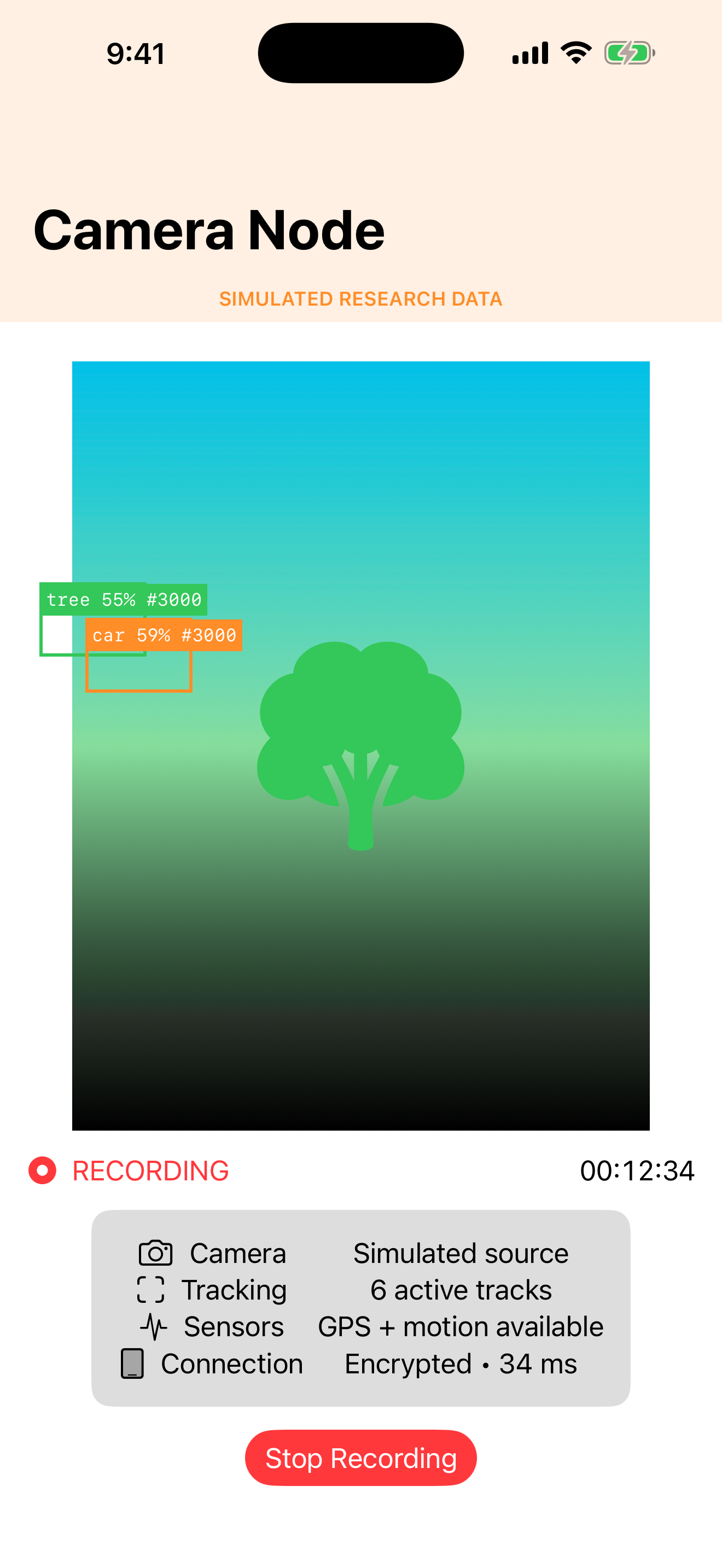
Park before configuring or operating OrganicVision. It is a research recorder and must not be operated manually while driving.
- Install OrganicVision iPhone using the signing steps in the README.
- Open Capture, enter a session name and optional notes, and choose 1080p/30 or compatible quality.
- Tap Start Recording and grant camera, location, and motion permissions when requested. Denied camera access is explained with a Settings shortcut.
- Monitor elapsed time, camera state, sensor state, location state, and available storage. Duplicate starts are blocked. Critically low storage triggers a safe stop.
- Tap Stop Recording before leaving Capture. Attempting to change tabs while active presents a stop confirmation.
- Open Sessions to review date, duration, size, completion state, and sensor availability. Open a row to play video and inspect metadata.
- Tap Prepare Export, then Share Raw Session Package to share the
.organicvisiondirectory. Delete with the confirmed swipe action; active sessions are protected.
In the simulator, the preview is visibly marked SIMULATED CAMERA and stopping creates deterministic video and sensor records. Physical sessions use the rear wide camera and are marked physicalCamera. All data stays local unless the user invokes the system share sheet.